Appearance
Connect a store
Connecting a store brings its customers, products, orders and carts into Shoovoo. You can then build segments from purchases, trigger automations on orders and abandoned carts, and put product recommendations in emails.
An account has one store connection. Only an Admin can connect it, under Ecommerce → Store Connection.
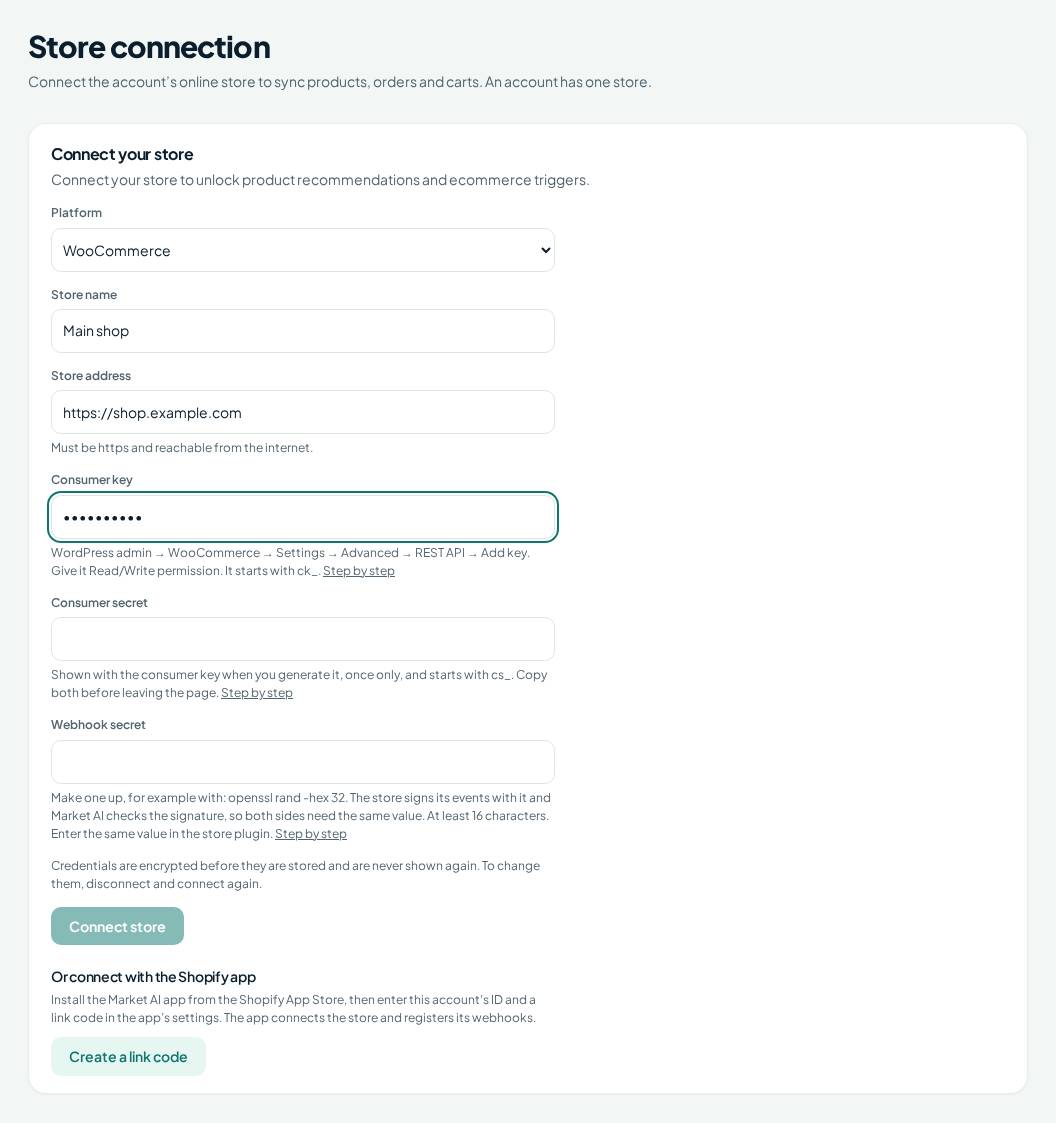
Choose the Platform, fill in the fields it shows, and press Connect store.
What you need for each platform
| Platform | Credentials the form asks for | Guide |
|---|---|---|
| WooCommerce | Consumer key, consumer secret, webhook secret | WooCommerce |
| Shopify | Admin API access token, or the Shopify app | Shopify |
| Magento | Integration access token, webhook secret | Magento |
| PrestaShop | Webservice key, webhook secret | PrestaShop |
| Custom API connector (anything else) | API key, webhook secret | Custom connector |
The form also asks for a Store name and the Store address, which must be https and reachable from the internet. Under each credential field the form says where to find it and links to the step-by-step page.
Two kinds of secret
- A credential from your store (consumer key, access token, Webservice key). Shoovoo uses it to read the store. Your store generates it.
- The webhook secret. Your store uses it to sign the events it sends to Shoovoo, and Shoovoo rejects any event whose signature does not match. You make it up, and it must be identical on both sides.
How credentials are kept
Credentials are encrypted before they are stored, each with its own key, and are never shown again. To change one, disconnect the store and connect it again.
After connecting
The page shows the store's name, a status (Pending, Syncing, Active, Error or Disconnected), the last and next scheduled sync, and whether the store adds its own consent checkbox. For WooCommerce it also lists the values to enter in the plugin. Disconnect removes the connection and its stored credentials; Re-sync now is not available yet.
Once connected, the Ecommerce menu lists Products, Orders, Carts, Wishlists and Recommendations, and segments, automation triggers and product recommendations can use the store's data.
Orders, products and customers reach Shoovoo as your store sends events: Shopify and WooCommerce events are processed today. A full import of the store's existing history is not available yet, so the status can stay Pending until it is, and you do not get the first-sync email until then. Consent is handled by the rules in Consent and double opt-in: a store customer is not opted in just by buying.